
Hardware
LoDi-DMX-Interface
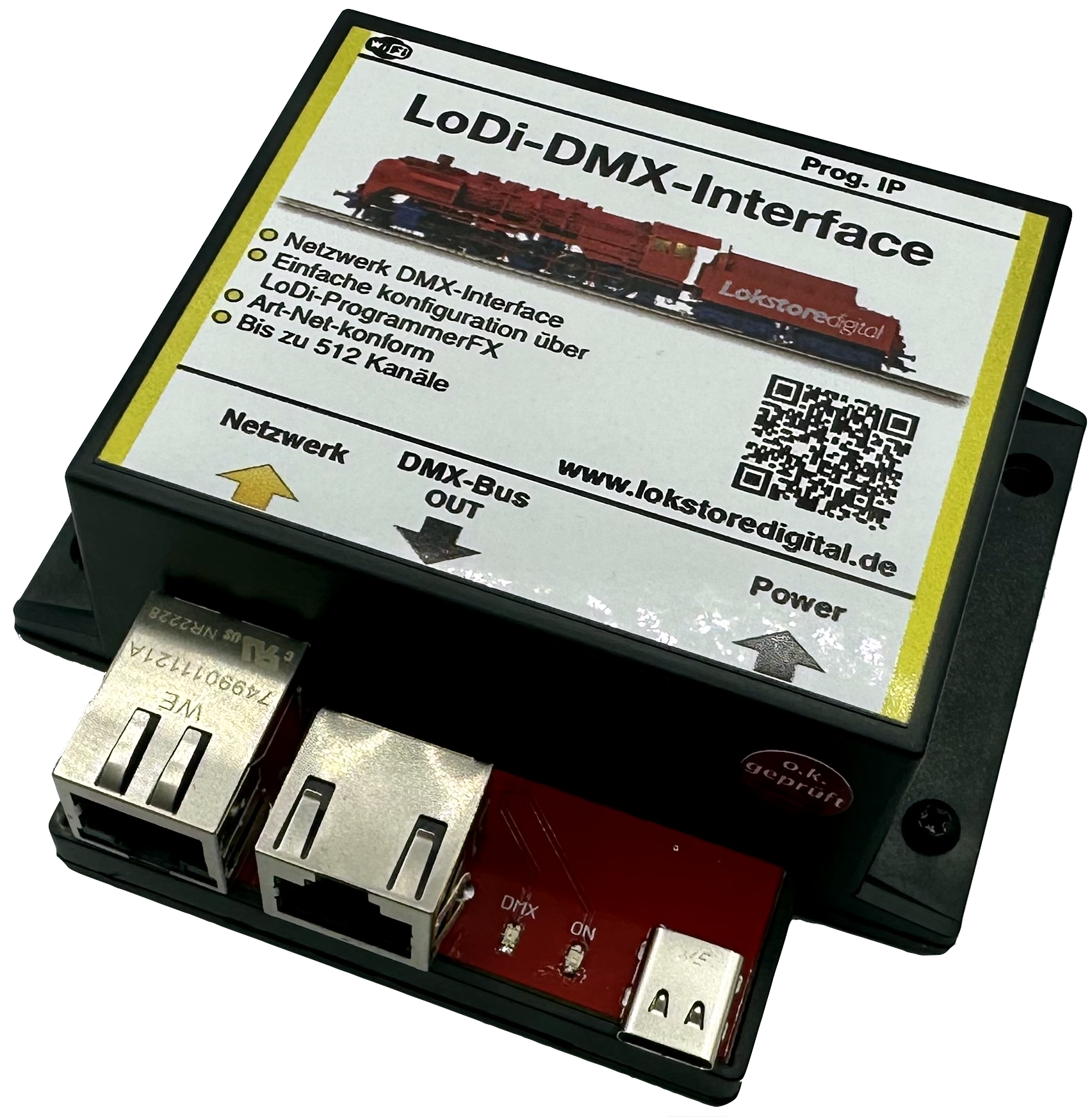
DMX is an international stage standard; a great many devices — LED walls, moving heads, dimmer packs, fog machines and much more — are driven over DMX. Since we regularly have to drive DMX devices in customers' layouts too, we came up with a simple network DMX interface that is ArtNet compliant and can therefore be used well beyond the model railway.
What the LoDi-DMX-Interface does
- ArtNet compliant DMX interface
- 512 DMX channels
- Wi-Fi capable
- A modern room lighting control with a scheduler is built into the LoDi-ProgrammerFX for the LoDi-DMX-Interface.
- A modern network interface, and therefore driverless operation!!!
1. The LoDi-DMX-Interface and its connections
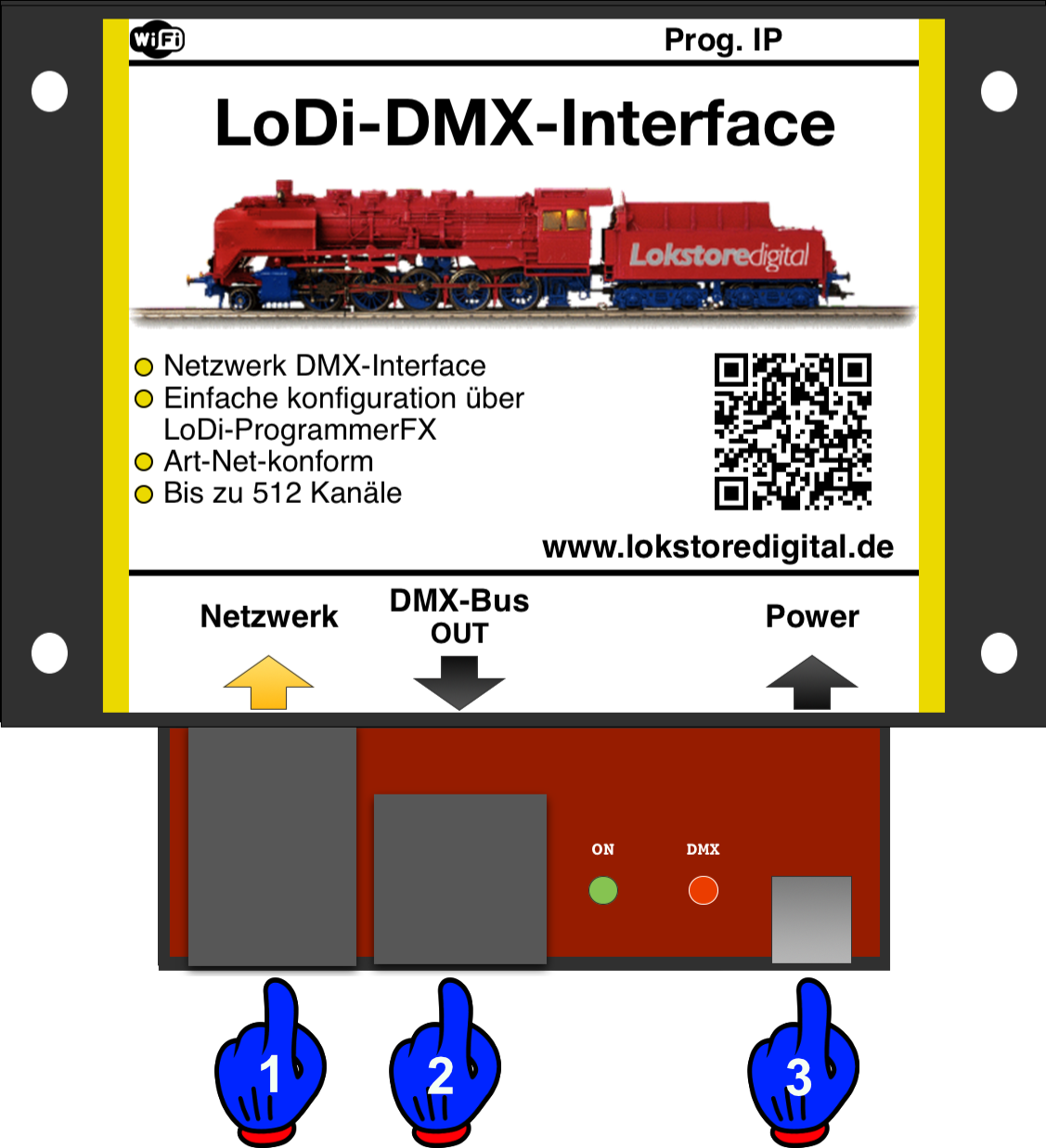
About the connections on the
LoDi-DMX-Interface:
- (1)Network interface: this is where you connect your network switch or router to the device.
- (2) DMX512 Out: the DMX devices are connected here. 512 DMX channels are available.
- (3) USB-C interface: don't worry, no USB is connected to the PC here — as mentioned above we work with driverless interfaces only. The USB-C connector merely supplies the LoDi-DMX-Interface with 5 volts.
2. LEDs and button on the LoDi-DMX-Interface
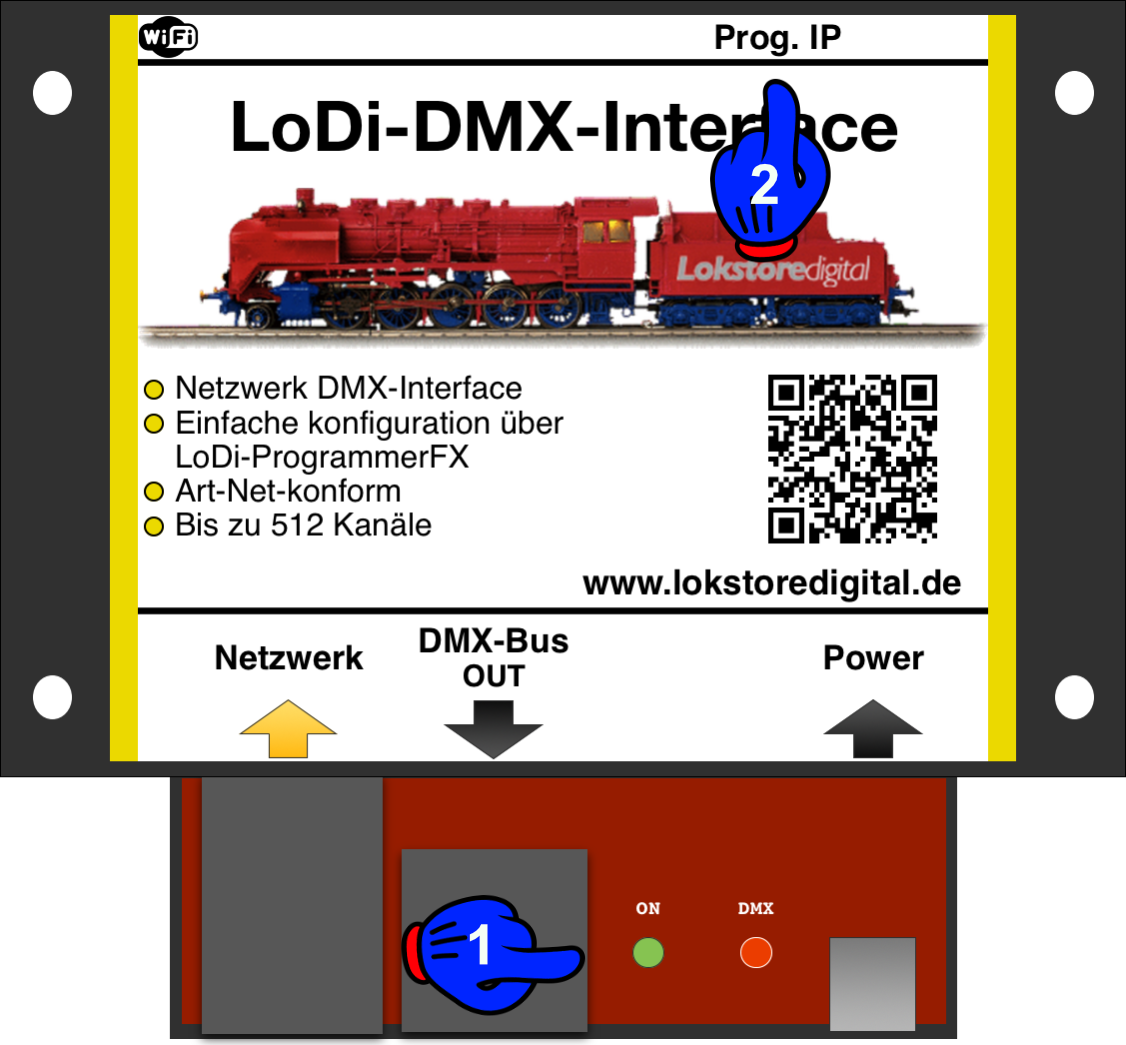
The LoDi-Shift-Commander has several LEDs and a button to help you read the state of the device and understand faults more quickly.
- (1): The "ON" LED blinks as soon as the device has power and lights steadily as soon as a client has connected to it. The red "DMX" LED blinks whenever the bus sends a change.
- (2) Prog. IP button and LED: this button is used when you want to change the IP address of your LoDi-Rektor. There is more on this in the description of the LoDi-ProgrammerFX.
3. Connecting the power
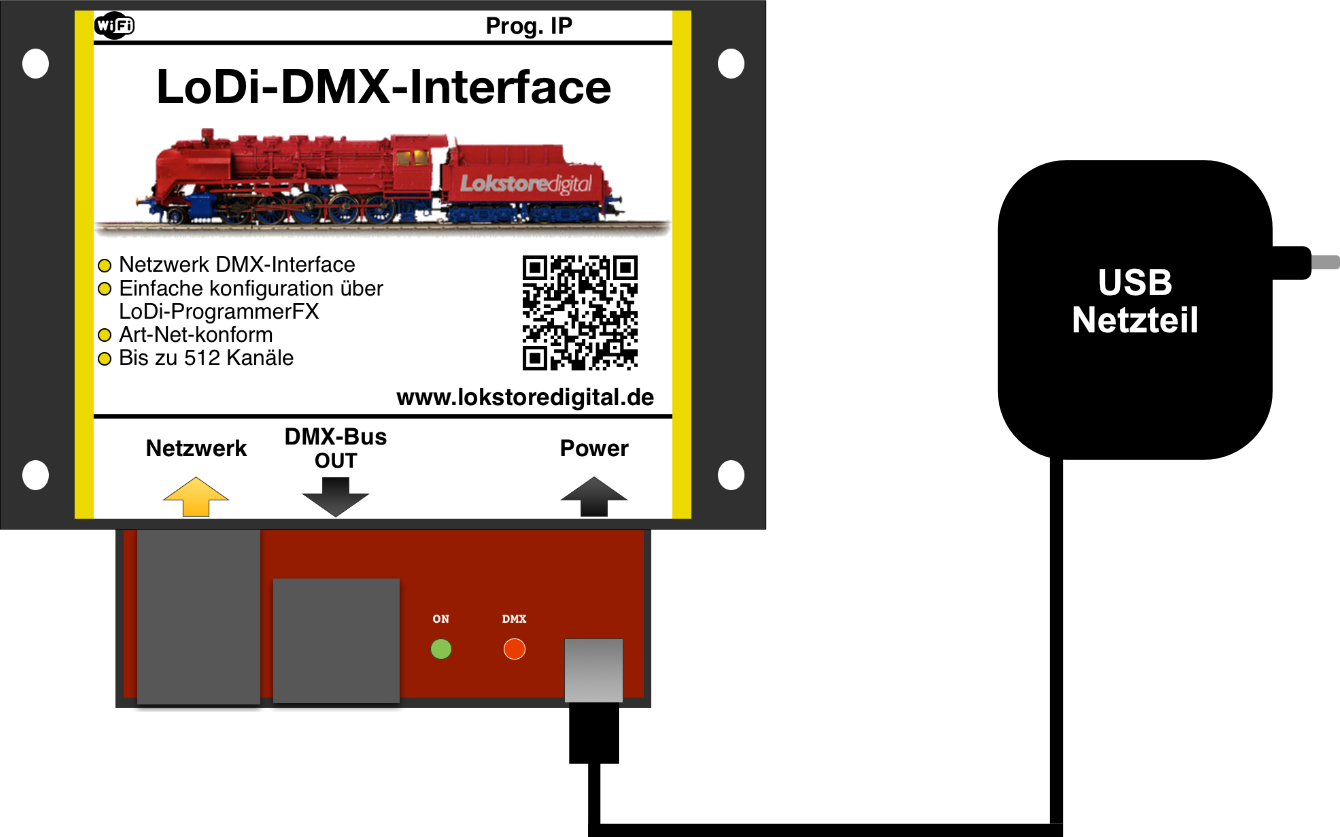
We ship the LoDi-DMX-Interface with a high-quality USB power supply. You are of course free to use your own, but it should be able to deliver at least 1 amp.
4. The LoDi-DMX-Interface and the network connection
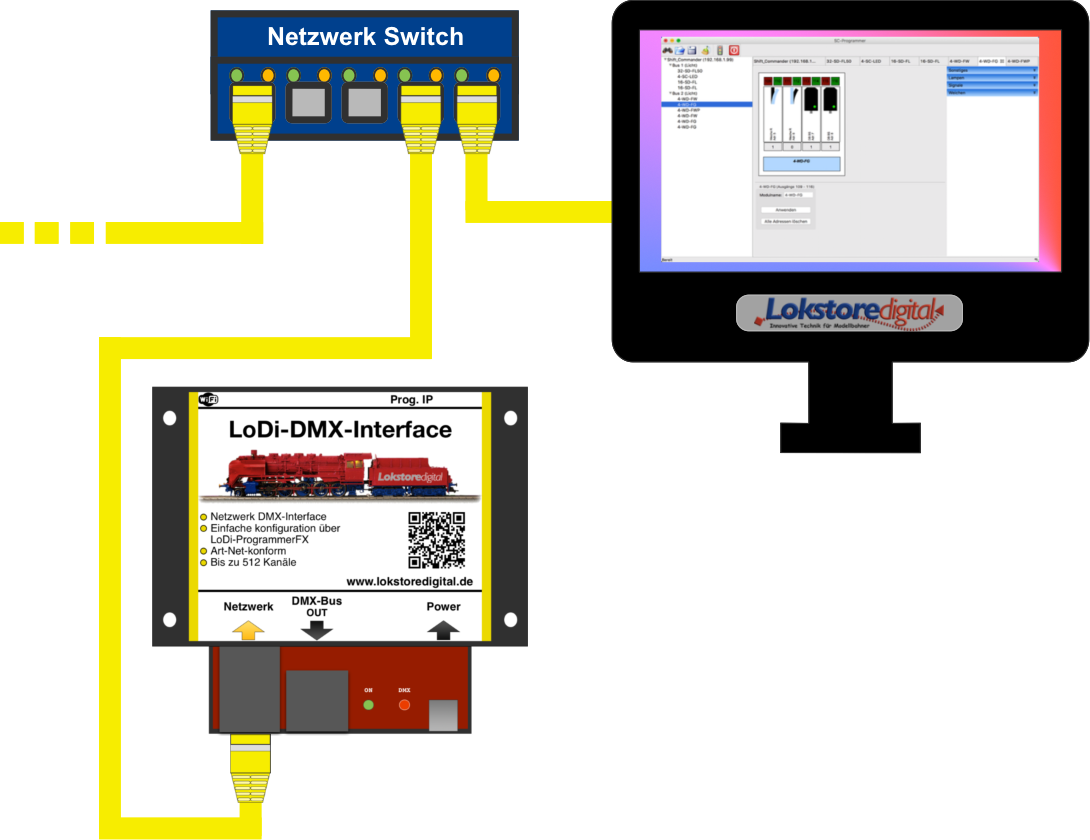
All of our devices work with a modern network interface.
That gives you plenty of advantages in handling them. Using this network interface you can integrate several interfaces into your system without any trouble.
There are almost no limits to your imagination here.
This technology makes large and very large layouts possible, but small layouts benefit from it too.
Thanks to network technology it is no longer a problem to control your layout from your laptop or tablet. Today's Wi-Fi routers are perfectly capable of carrying those connections fast enough.
There is little to watch out for when adding the LoDi interface to your network.
It is always easier, though, to add the LoDi interface to an existing network than to install another network card in the computer.
If you need help with the integration you are welcome to get in touch,
or turn to our users in the forum, who will gladly help you further.
As you can see in the picture above, we pay close attention to the colour coding of the network cables. Yellow is the international standard for computer networks.
You are of course welcome to use other colours; we stick to these standards.
In the example shown you can see the computer connected to a switch or router.
You can of course also connect the computer or the LoDi-DMX-Interface over Wi-Fi.
The LoDi-DMX-Interface can also be connected directly to the switch or router.
The cable running off to the left could be your internet line or other devices connected to your network.
If the ports on your switch or router are not enough, you can simply attach another switch to the existing one. The link channels of the switches route the data to the right device automatically; all you have to do is plug the cables in. Please make sure not to build a loop, though — a loop is effectively a circle, and it can bring your network to a standstill.
Once the LoDi interface is connected correctly, the next step is configuring the network address
(the so-called IP address) with our LoDi-ProgrammerFX.
5. Connecting to the DMX bus
We use a standard patch socket on the LoDi-DMX-Interface, since many DMX devices already have RJ45 patch sockets. Should your DMX device have an XLR connector, you can order the adapters you need directly from us.

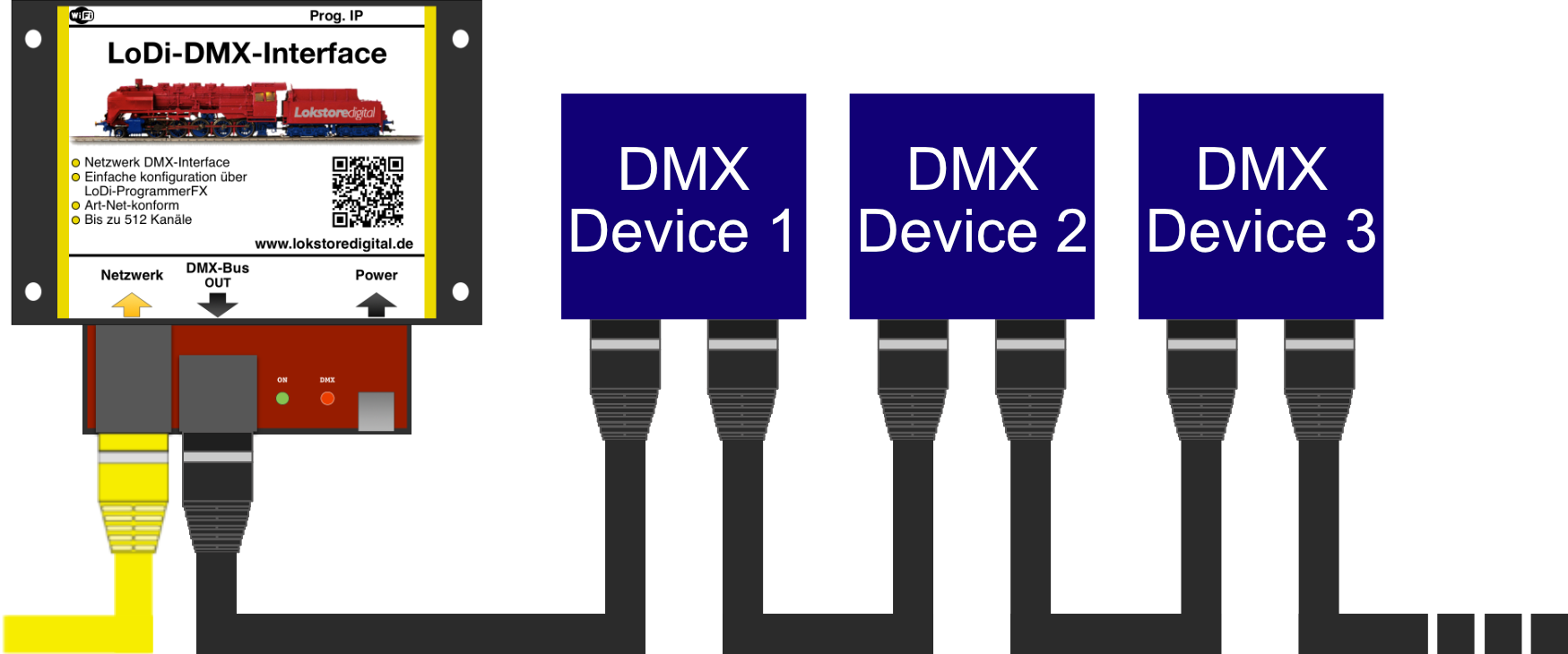
The devices are chained one after another with a patch cable or an XLR cable. DMX splitters available on the market can happily be used with a LoDi-DMX-Interface.
512 DMX channels are available to you. Every device on the bus uses a different number of channels: a moving head needs 13, for instance, while an LED controller needs only 3. Take the number of channels required from the manual of your DMX device.

With DMX the devices are chained into the bus one behind the other. The addresses are set on the devices themselves, usually with a bank of DIP switches or digitally on a display.
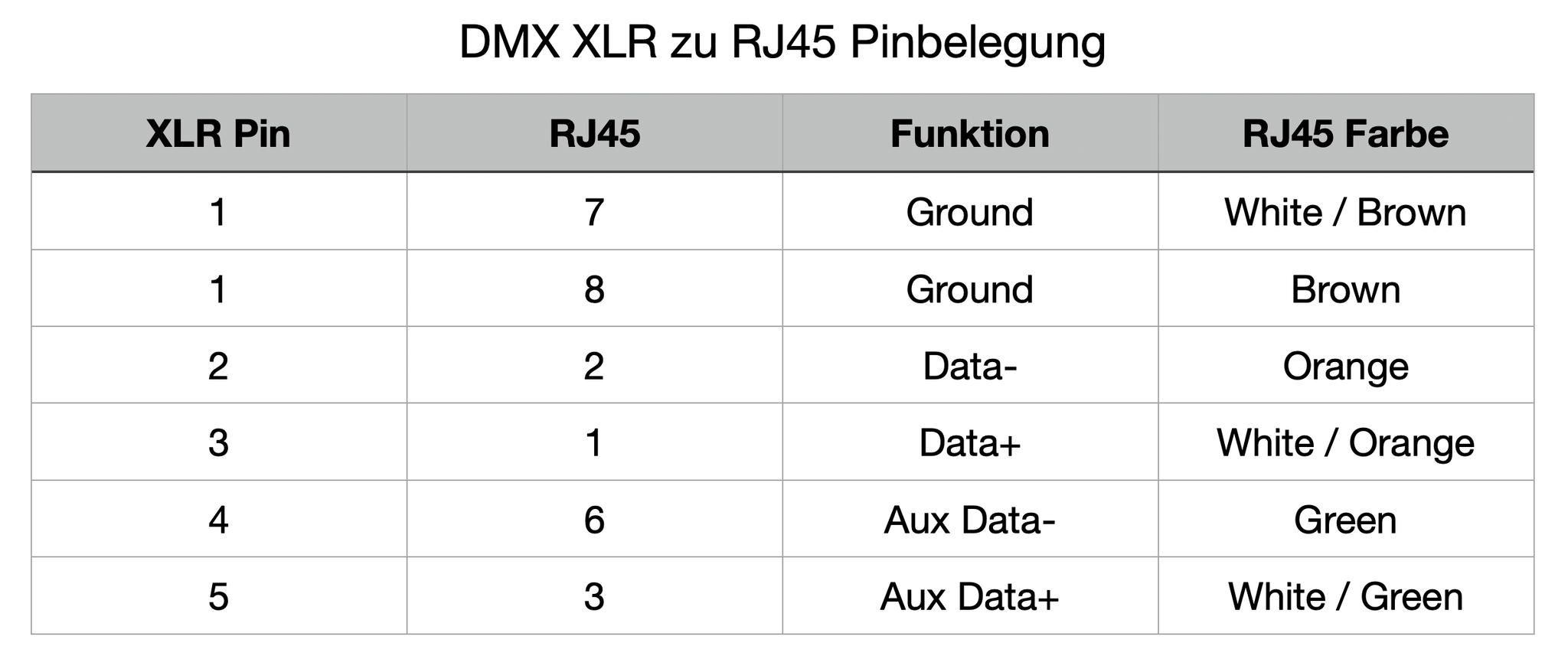
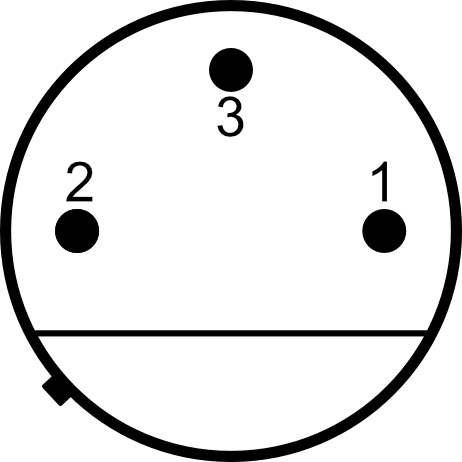
XLR connectors come in 5-pin and 3-pin versions. In most cases the 3-pin XLR connector is the one in use. The key to the numbers is in the table above.
Here you see an XLR plug and socket.
DMX uses only 2 conductors — Data + and Data − — plus ground (the shield). The DMX standard also has Aux Data− and Aux Data+, but we do not use those in our LoDi-DMX-Interface.
6. Technical data
Dimensions:
Length 8.9 cm
Width 10 cm
Height 3.5 cm
Weight:
80 Gramm
The USB-C connector can be supplied from any common USB-C cable or power supply.
The maximum load of the USB power supply may be up to 3 amps.
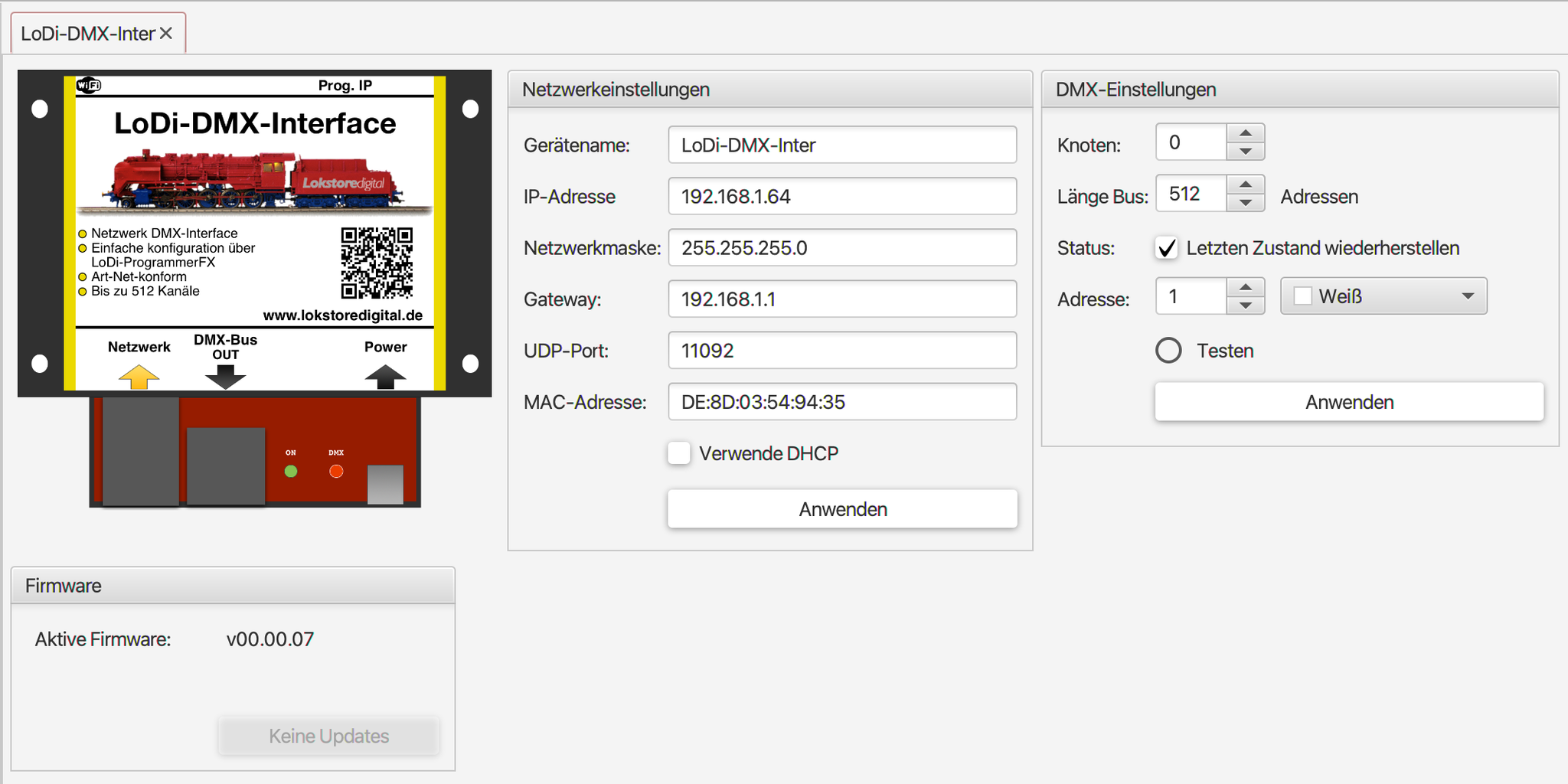
7. Setting the LoDi-DMX-Interface up in the LoDi-ProgrammerFX
**This way to setting up the IP address of the LoDi-DMX-Interface**
8. Download the LoDi-DMX-Interface as a PDF

Would you like to see the quality of the devices for yourself?
Get in touch with us HERE!
Visit our forum, where experienced users are happy to help you.