
LoDi-Con manual
LoDi-Shift-Commander

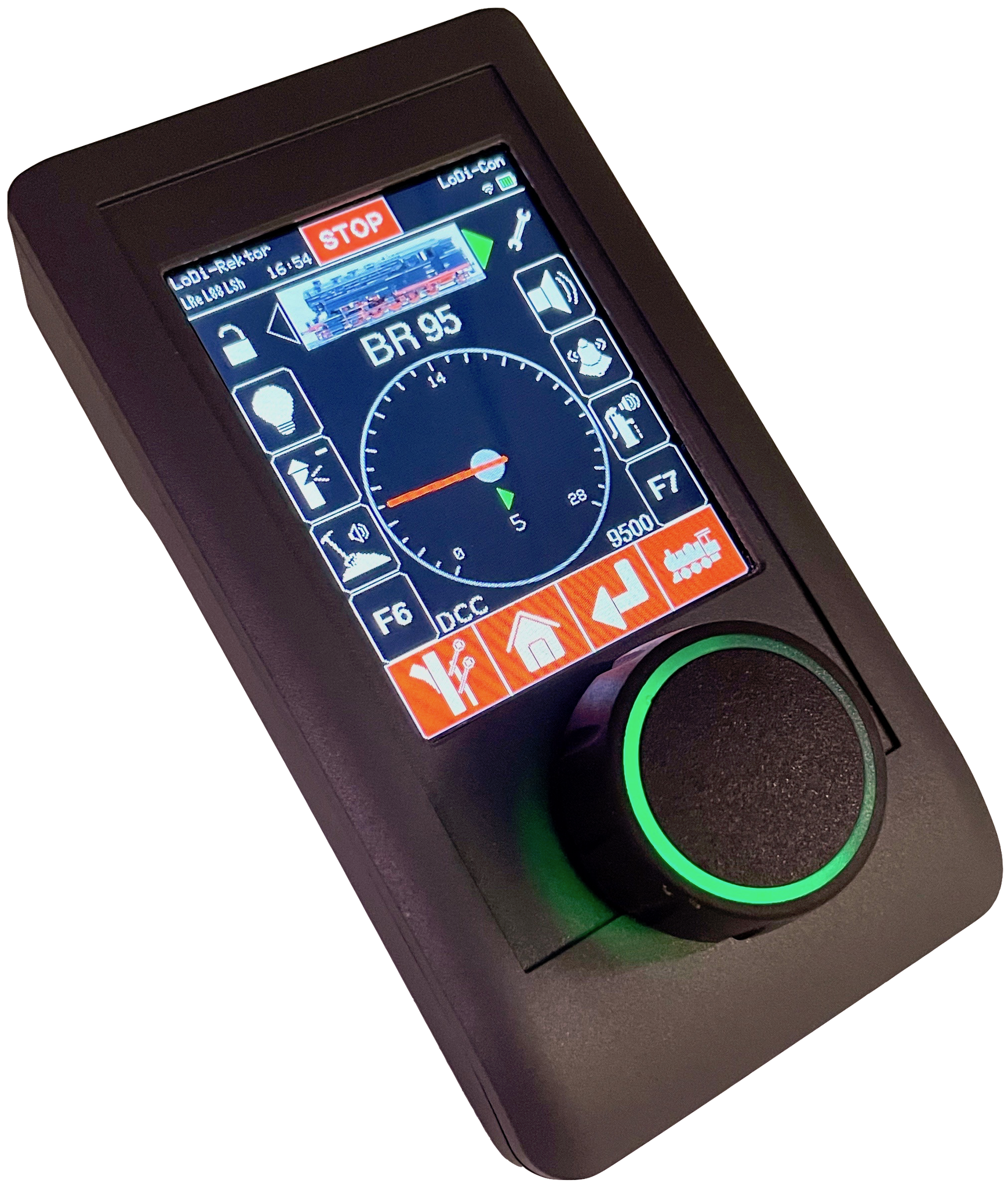
For the LoDi-Rektor, the station overview shows every connected µCon bus component together with its status.
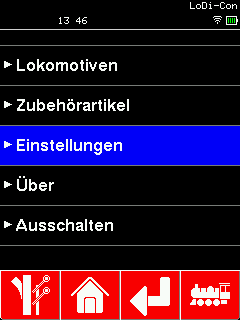
To connect the LoDi-Rektor to the LoDi-Con, proceed as follows:
First tap the "house", which always takes you back to the main screen.
From there go to "Settings" > "Command station" >

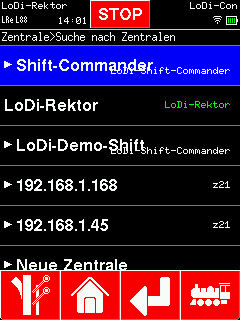
To connect the LoDi-Shift-Commander to the LoDi-Con, proceed as follows:
The LoDi-Con now searches the network for compatible command stations. Any it finds are shown.
That is because the LoDi-Rektor understands the z21 protocol as well, so that a Roco Wi-Fi handheld can connect to it. In this case please use the LoDi-Rektor.
Now choose the Shift-Commander you want to connect to the LoDi-Con. In our example it is the top one.

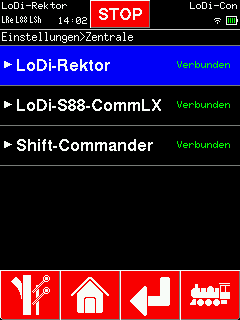
You can change the name of the Shift-Commander if you like.
The LoDi-Con now connects to the LoDi-Rektor.
The LoDi-Con now connects to the Shift-Commander.
A new symbol (LSC) for the LoDi-Shift-Commander now has to appear at the top left. If that LSC is steady, the connection is up. If it blinks, the LoDi-Con has no connection to the
LoDi-Shift-Commander or is trying to establish one.

Tapping the top left takes you to the overview of command stations, which also shows whether a connection is active. You can now tap the Shift-Commander to see its IP address and status.
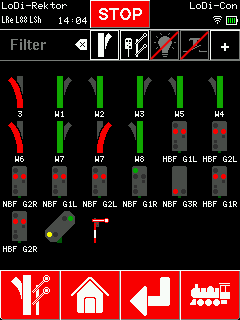
Once the LoDi-Shift-Commander is set up, no further steps are needed. You can now reach every article created in the Shift-Commander straight from the
turnout and signal symbol.
Routes can also be created for the

Would you like to see the quality of the devices for yourself?
Get in touch with us HERE!
Visit our forum, where experienced users are happy to help you.