
Software
LoDi-DMX-Interface
Settings and firmware update
The LoDi-DMX-Interface is an Art-Net compliant network interface with 512 DMX channels which can be run over cable or Wi-Fi.
Standard DMX devices can be connected directly at the output through RJ45.
1. The overview
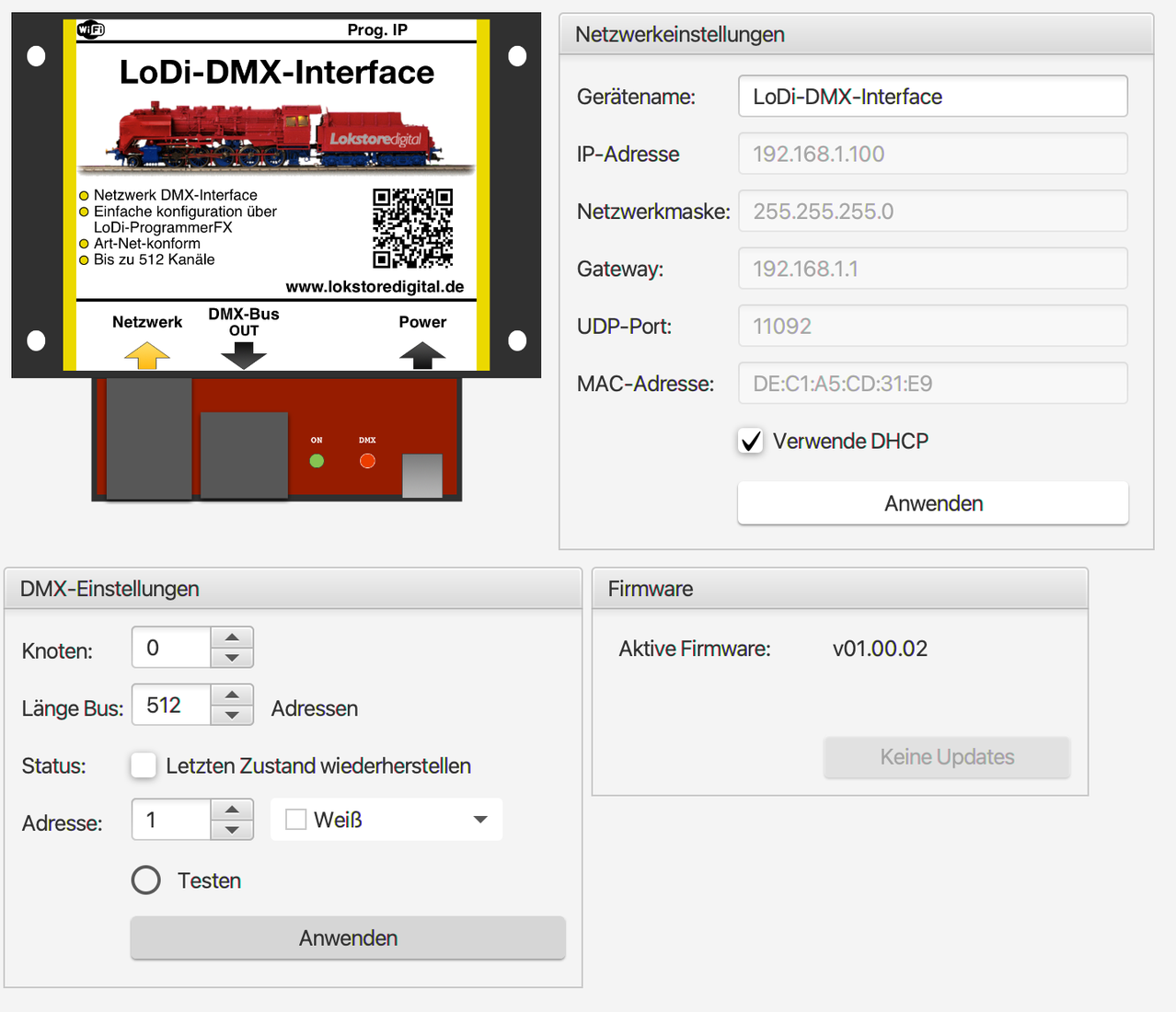
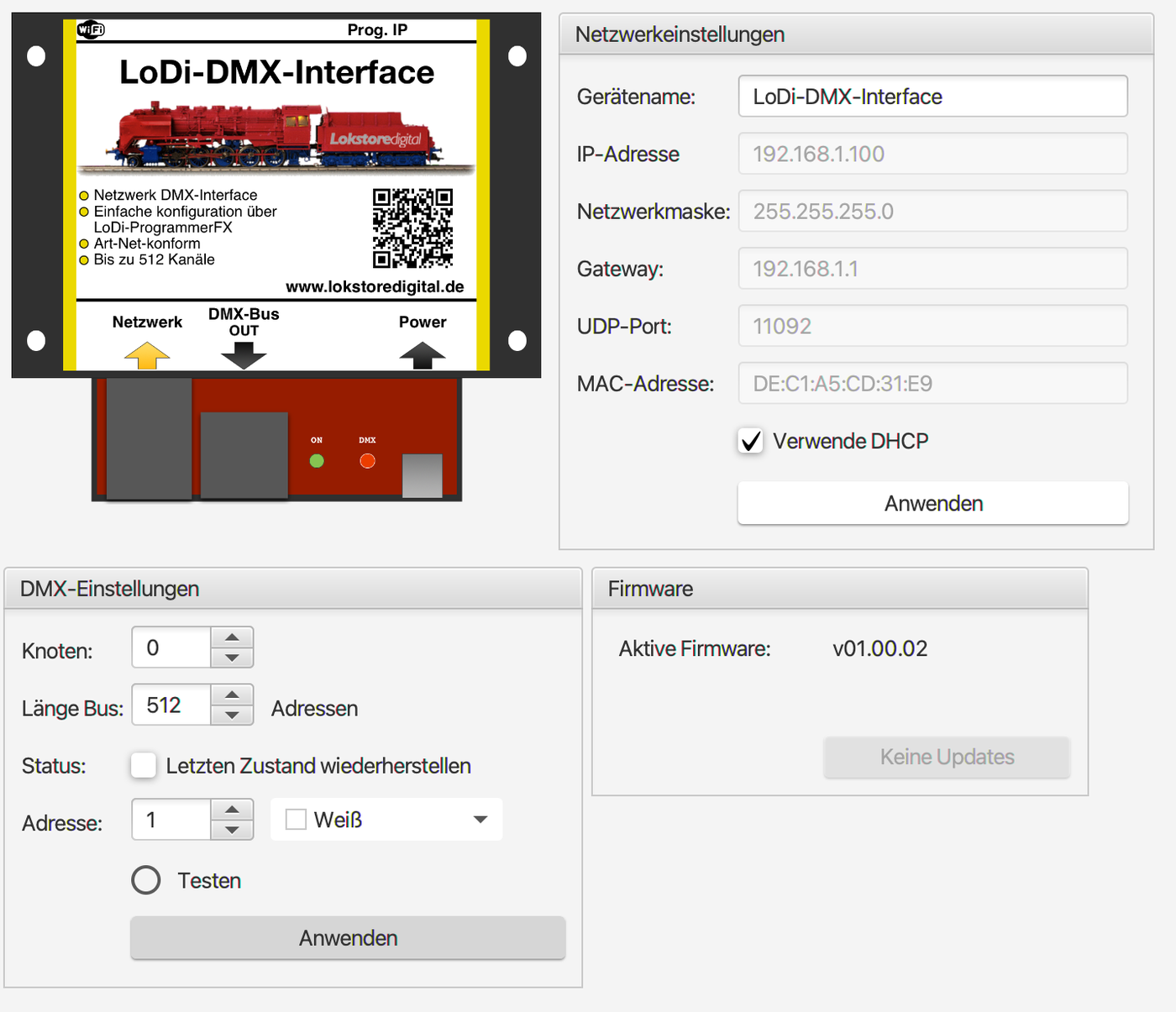
The device editor of the LoDi-DMX-Interface contains the following areas:
- DMX settings: the bus length is set here
- Network settings: setting the IP address
- Firmware: updating the LoDi-DMX-Interface's firmware
Network settings
See the network settings in the section Commissioning LoDi devices.
2. The DMX settings
- Node: the Art-Net universe is entered here. If you only have one LoDi-DMX-Interface in use, this figure stays at "0".
- Bus length: the available channels to be sent are entered here. By default all 512 are used.
- Status: if this box is ticked, the LoDi-DMX-Interface will start up again with the last state on the channels.
3. Controlling DMX channels
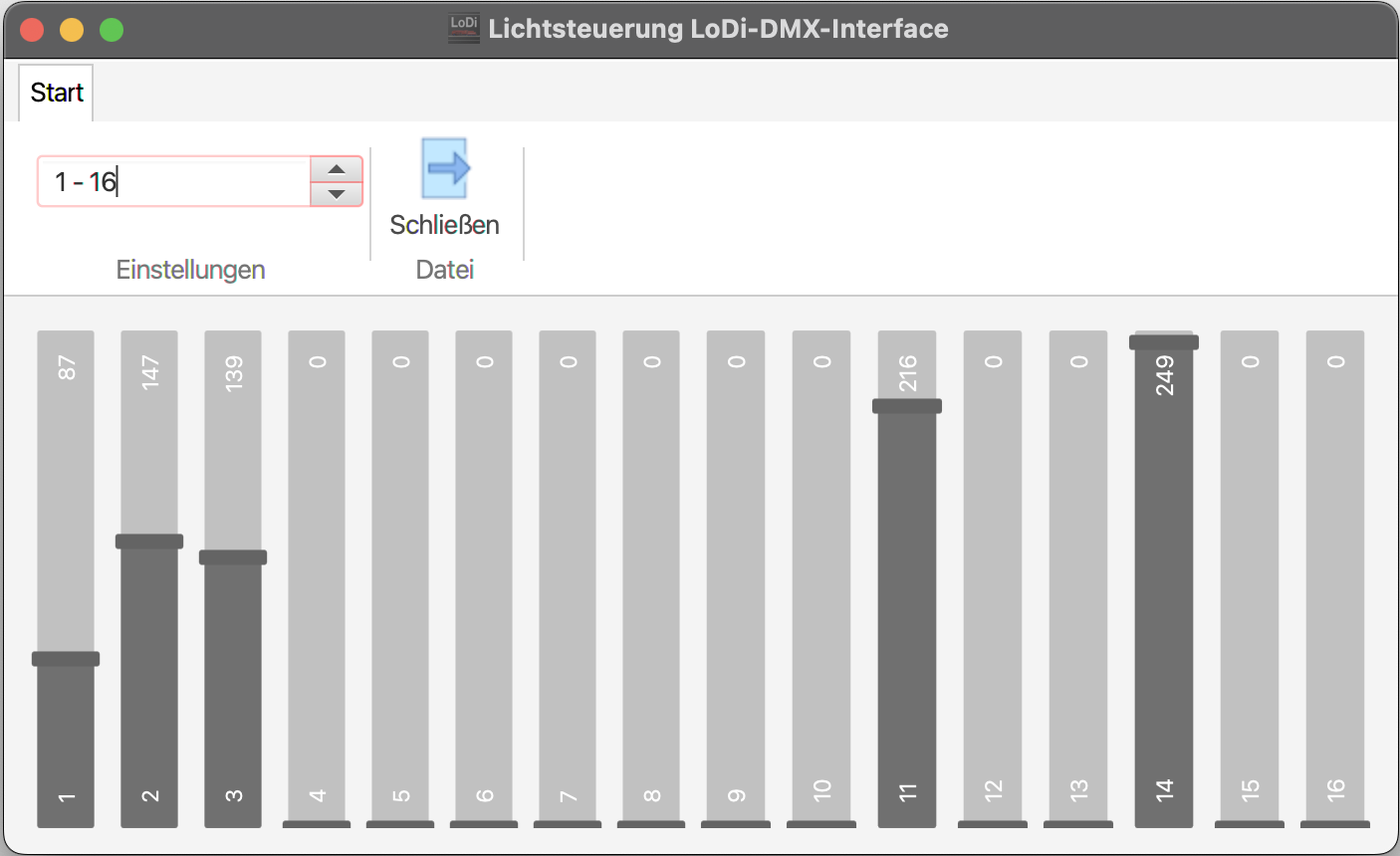
In the LoDi-ProgrammerFX we have created a way of quickly controlling channels on the DMX net.
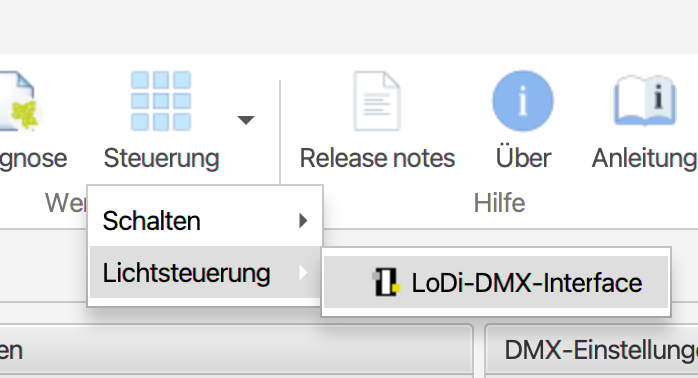
Click Steuerung at the top of the Programmer; the LoDi-DMX-Interface is shown there under "Schalten". Click it and a new dialogue opens with which you can now test all the DMX channels with the slider.
4. Firmware update
From the LoDi-ProgrammerFX 2025.01 onwards there is an online updater for the devices' firmware. We show you here how to install firmware.
First click the device that is to be updated, in this case the LoDi-DMX-Interface (1). A new menu item now appears in the bar at the top: "Online-Update".
The update dialogue opens and the server automatically searches for available updates.
Then select the newest version shown (3) and click Install update (4). In the next dialogue the currently installed version and the version to be installed are shown to you once more.
Confirm the process by clicking OK to start the update. Once the update is finished, the device restarts automatically. If the current version is already installed, the LoDi-ProgrammerFX will say so.
5. Resetting the device
The LoDi-DMX-Interface can be reset to its factory settings if, for instance, the IP address has been changed and DHCP is disabled in the device. Or if you generally want to put the device back into its as-delivered state, that is possible with the "Prog. IP" button on the LoDi-DMX-Interface. Press the button for 11 seconds; the device restarts and is then in its as-delivered state.

Any questions still open?
Would you simply like to ask us in person?
Or go to our forum, where experienced users are glad to help you further.